> ## Documentation Index
> Fetch the complete documentation index at: https://craftspace.mintlify.site/llms.txt
> Use this file to discover all available pages before exploring further.
# Quickstart
> From nothing to a running install with your first page.
## What you need
One small box. The app listens on plain HTTP and expects something in front of it for TLS.
Every model call runs through it. A plain inference key, not a provisioning key.
Token, team id and project id. Gus runs its harness there and nowhere else.
No Postgres to install, no Redis, no object store. All optional, all configured later.
## 1. Start it
```sh Docker theme={null}
docker run -d --name craftspace \
-p 8080:8080 \
-v craftspace-data:/data \
-e CRAFTSPACE_URL=https://craftspace.example.com \
ghcr.io/abuaboud/craftspace:latest
```
```sh Binary theme={null}
curl -fsSL -o craftspace \
https://github.com/abuaboud/craftspace/releases/latest/download/craftspace-linux-x64
chmod +x craftspace
CRAFTSPACE_URL=https://craftspace.example.com ./craftspace supervise
```
```sh From source theme={null}
git clone https://github.com/abuaboud/craftspace.git
cd craftspace
npm install
npm run dev
```
`CRAFTSPACE_URL` is the address people will reach this install on. Every other origin derives from it, so
on a single domain it is the only one you have to set. Set it before anyone signs in: it is what OAuth
callbacks, invite links and the MCP endpoint are all built from.
## 2. Create the first account
Open the install and sign in. The first account to arrive becomes the **install owner**, which is the only
account that can change server settings.
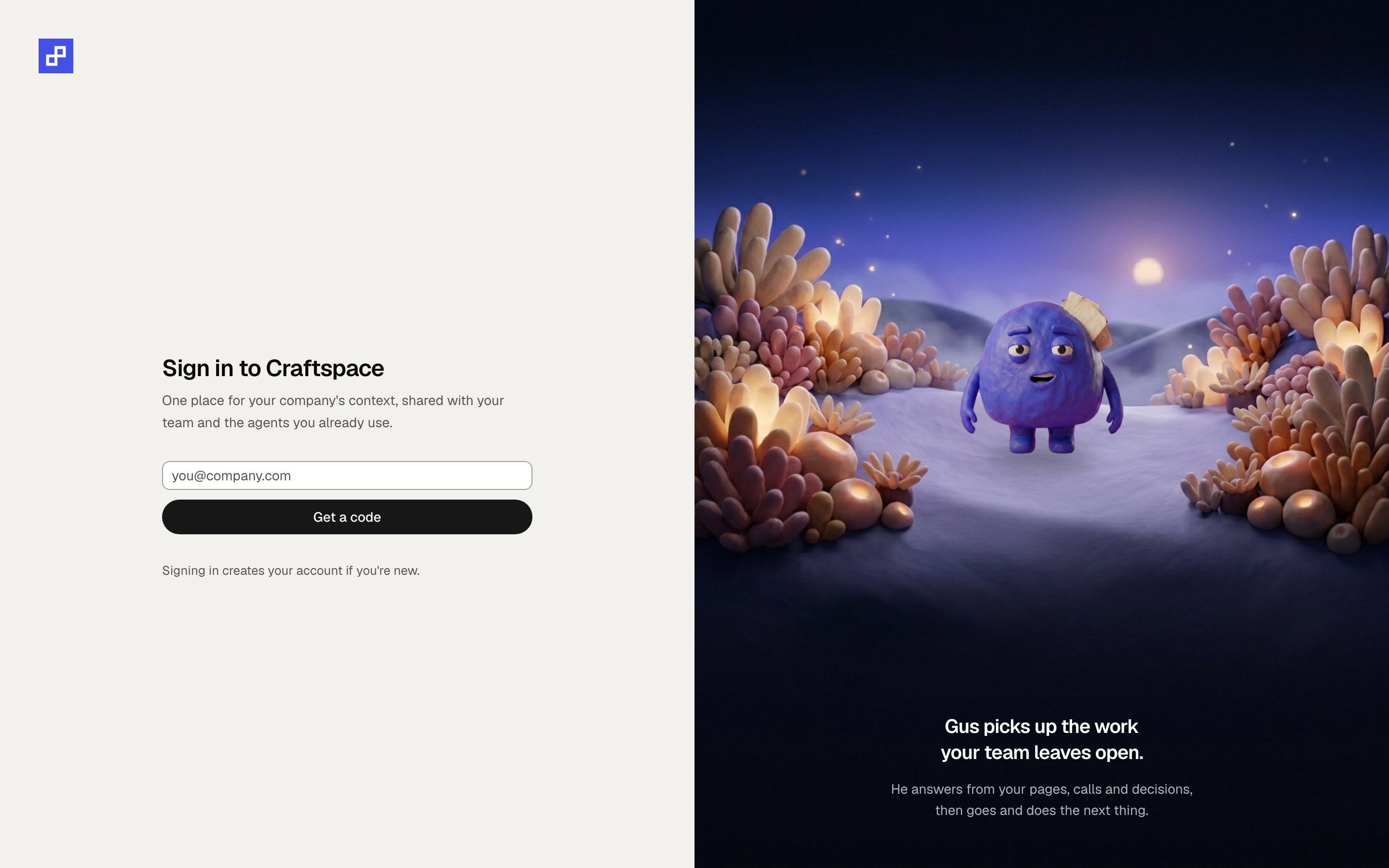 This is first-come and there is no screen to hand it over. On a box that is already reachable from the
internet, create your own account before you tell anyone the URL.
## 3. Give it a model
Settings, then the server settings screen. Everything this server runs on is on one page, and the two
under **Gus's runtime** are the ones that are not optional.
This is first-come and there is no screen to hand it over. On a box that is already reachable from the
internet, create your own account before you tell anyone the URL.
## 3. Give it a model
Settings, then the server settings screen. Everything this server runs on is on one page, and the two
under **Gus's runtime** are the ones that are not optional.
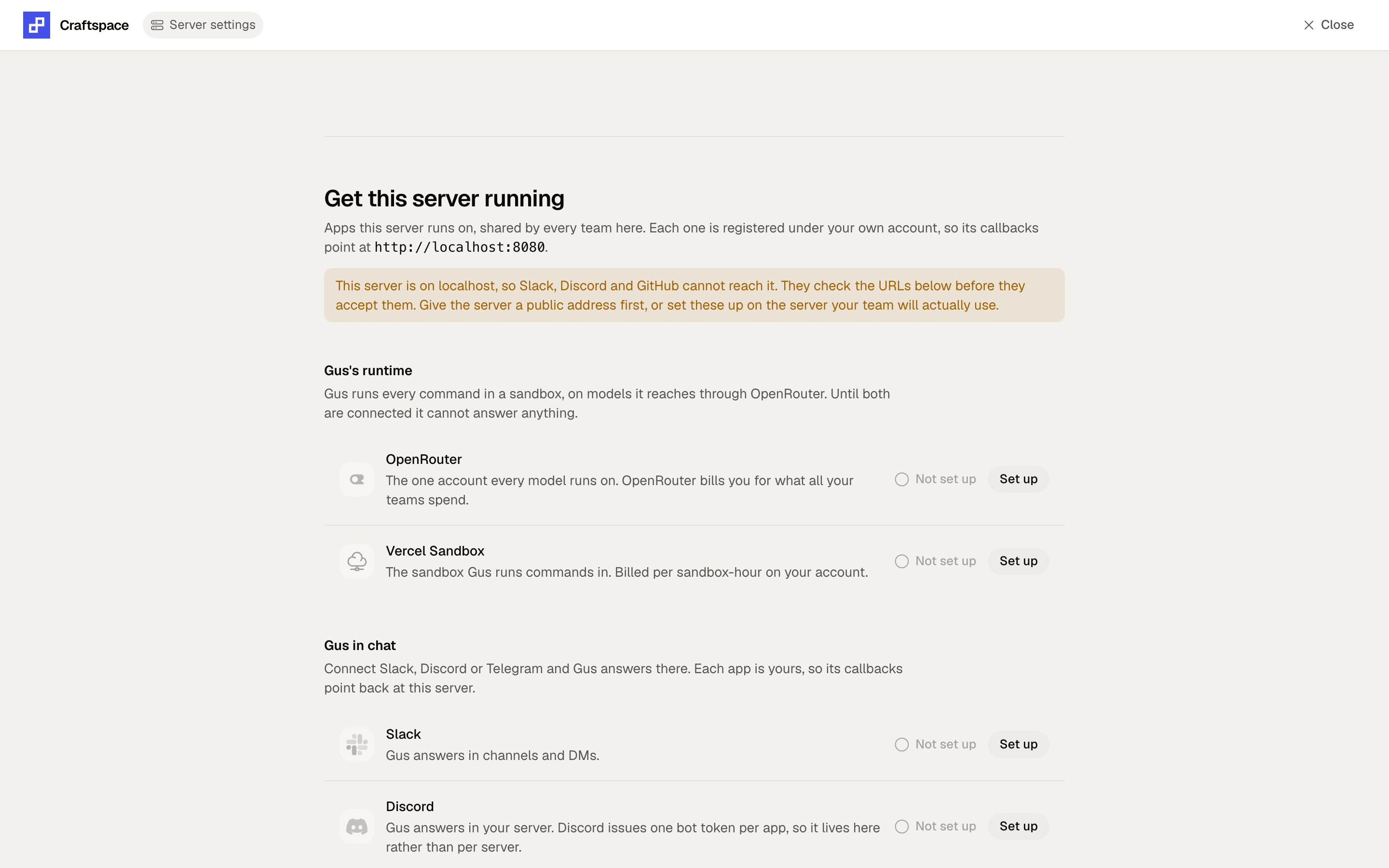 Paste an OpenRouter API key.
Mint a plain key at [openrouter.ai/settings/keys](https://openrouter.ai/settings/keys). A *provisioning*
or *management* key looks valid and then fails on every answer, so the check refuses one on purpose. Leave
the per-team cap blank, or set it to `0`, unless you actually want a ceiling.
## 4. Give it a sandbox
On the same screen, add the Vercel Sandbox token, team id and project id. Until both this and the model
key are set, Gus will tell you it is unconfigured rather than half-working.
## 5. Write something, then read it from an agent
Make a page. Then [point an agent at your MCP endpoint](/agents/mcp) and ask it something only that page
knows. That round trip is the whole product, and it is worth doing on day one.
Paste an OpenRouter API key.
Mint a plain key at [openrouter.ai/settings/keys](https://openrouter.ai/settings/keys). A *provisioning*
or *management* key looks valid and then fails on every answer, so the check refuses one on purpose. Leave
the per-team cap blank, or set it to `0`, unless you actually want a ceiling.
## 4. Give it a sandbox
On the same screen, add the Vercel Sandbox token, team id and project id. Until both this and the model
key are set, Gus will tell you it is unconfigured rather than half-working.
## 5. Write something, then read it from an agent
Make a page. Then [point an agent at your MCP endpoint](/agents/mcp) and ask it something only that page
knows. That round trip is the whole product, and it is worth doing on day one.